
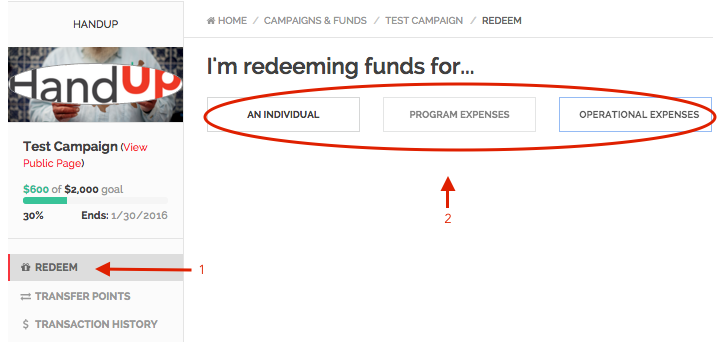
To redeem funds, click “Redeem” from the left side menu, then select which category you are redeeming for and fill out the available fields.
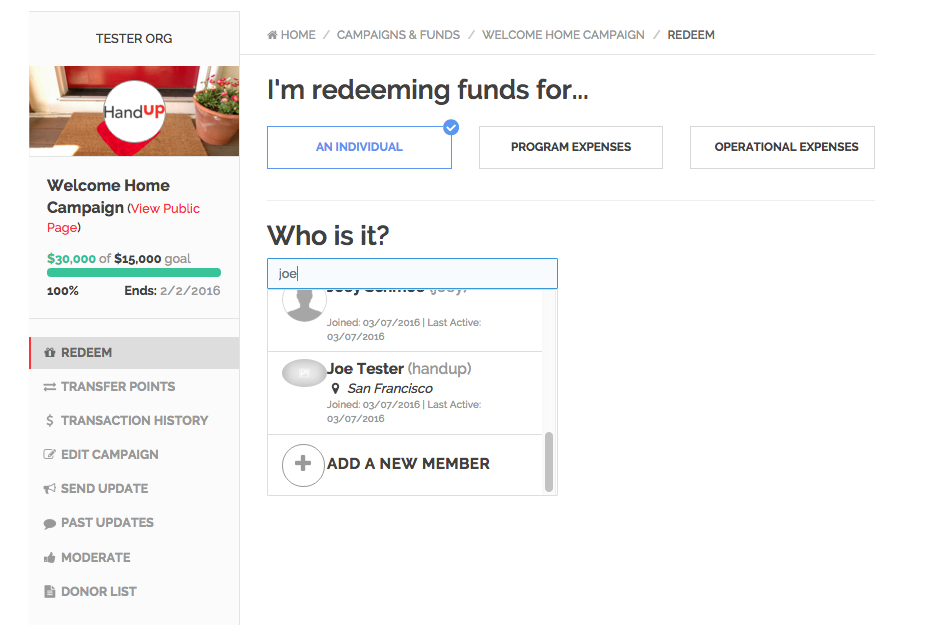
If you are redeeming for an individual, you can type the person’s name and they will show up in the dropdown and you can select their name from the list. If they are new to your system you can select the "Add New Member" option from the drop down as shown below.
If you are creating a new member you will see this pop up window:
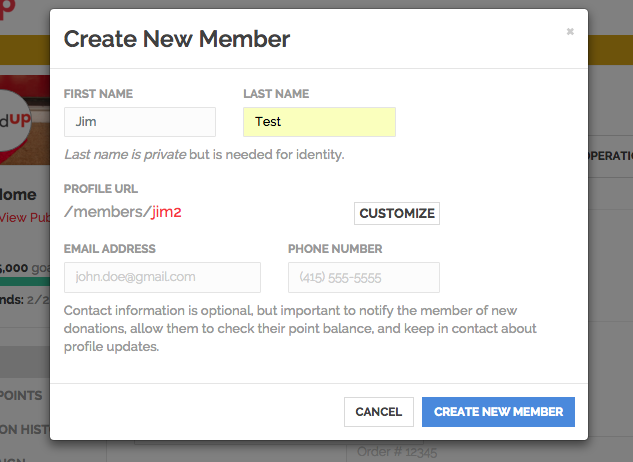
Fill in their first and last name and click "create new member". Email or phone number is not required here. This creates your client a private profile in your system.
Then you should be brought to the redeem form:
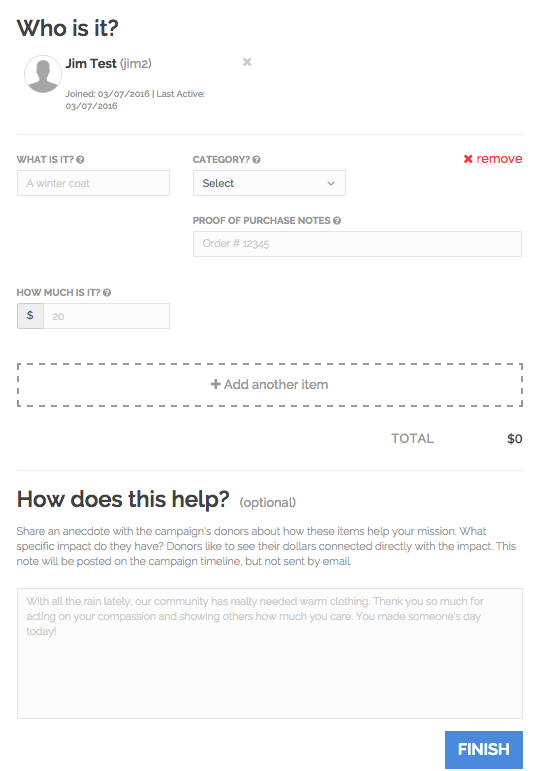
You fill out each field in this form and in the bottom portion for "how does this help" you can provide an update to your donors about what was just purchased. This is optional and you can choose to leave it blank.
Once you click "finish" your purchase will be logged and you can continue to log more purchases if needed. Each category listed at the top (individual, program, operations) has a similar form.
Comments
0 comments
Please sign in to leave a comment.