
To respond to a donor comment, you’ll first need to approve the comment, and then you can send a response.
To see all comments, including those needing approval and those needing responses, click ‘Moderate’ from the left side menu.
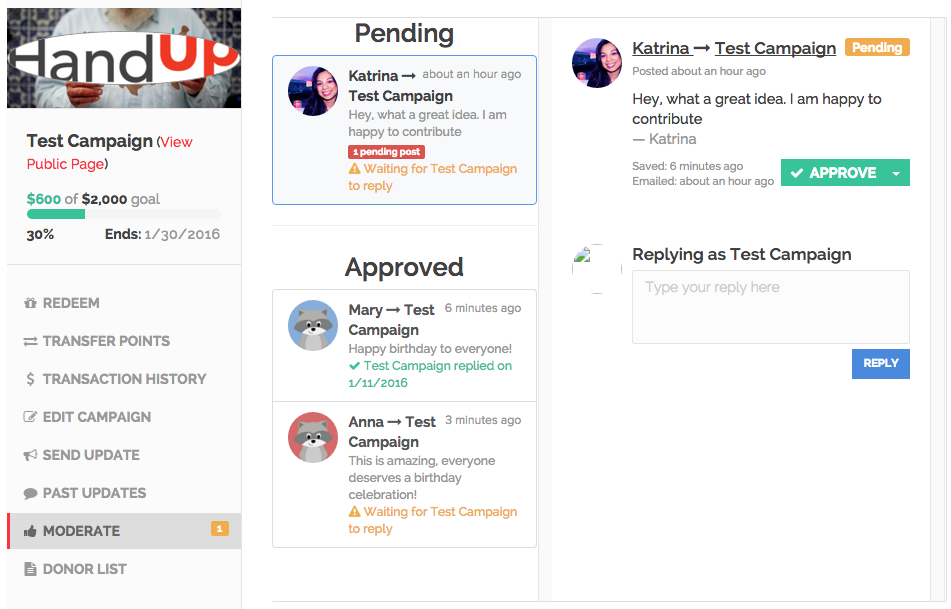
Comments that need Approval will show under “Pending.” Comments that need a response will have yellow text that says “Waiting for <your campaign> to reply.” Comments with green status text indicate the comment has already been responded to.
To reply to a comment, click on the comment in the left column and in the right column you will see the full text of the comment and a text box where you can reply. Once you reply you will also need to approve your response by clicking the green Approve button that appears once you submit your reply.
When you approve and reply to comments, they are posted to the campaign wall and viewable by the public. When you approve a response to a comment it will automatically be emailed to the original commenter. We have found that responding to comments increases donations as it shows potential donors you are active and dedicated to the campaign’s success (if you show you care, they will care, too!) and increases the likelihood they will come back to donate during the last final crunch towards the end of your campaign, when you need help closing the goal.
The reason HandUp has a moderation system is because we want to be sensitive to the communities we are serving and want to ensure nothing inappropriate that could negatively affect your campaign gets posted for public view. If any negative comments come through, you can delete them as needed.
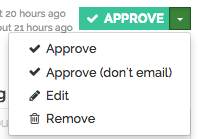
To delete a comment, select the dropdown menu on the green Approve button (the small arrow next to the word Approve). You will see a drop down menu and the option to ‘Remove’.
Comments
0 comments
Please sign in to leave a comment.